
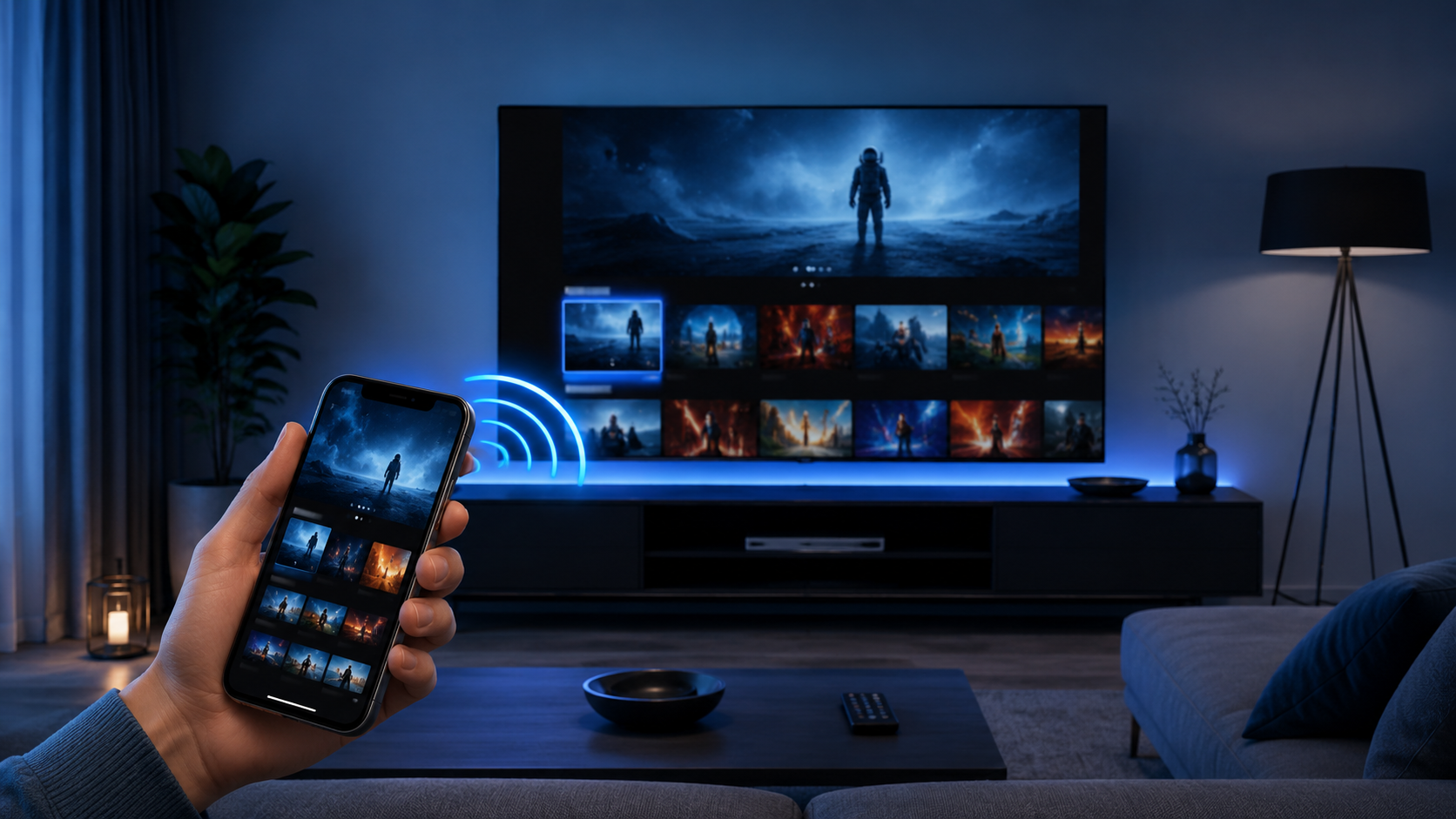
You can connect an iPhone to a television through in-app AirPlay, Screen Mirroring, Google Cast, an HDMI connection, or a supported TV or streaming-device app. The best answer to how to connect iPhone to TV depends on your television, streaming app, Wi-Fi network, and whether the iPhone uses USB-C or Lightning.
Wireless options are usually more convenient, while HDMI can help when Wi-Fi is unavailable or unstable. However, every television and video app has its own compatibility rules, so confirm support before buying an adapter or streaming device.
Quick Answer: How to Connect iPhone to TV
Choose one of these five methods:
- Use the AirPlay button inside a compatible video or photo app.
- Open Control Center and mirror the entire iPhone screen.
- Tap the Cast button in a Google Cast-enabled app.
- Connect the iPhone with a compatible USB-C or Lightning video adapter and HDMI cable.
- Use a supported streaming device or the television manufacturer’s official app.
In-app AirPlay or Google Cast is generally preferable for movies because the television or streaming device handles playback directly. Screen Mirroring reproduces the iPhone display and is better for presentations, photos, websites, or apps that permit mirroring.
Before connecting, choose one of the best streaming apps for iOS that supports both the content and the TV method you plan to use.
What You Need Before Connecting Your iPhone
Check these items first:
- A compatible smart TV, Apple TV, Chromecast, Google TV device, Roku, Fire TV, or other supported receiver
- Stable Wi-Fi for wireless methods
- Both devices on the same Wi-Fi network when the method requires it
- Current iOS, television, streaming-device, and app updates
- The exact adapter or cable required by your iPhone connector
- An available HDMI port for a wired connection
- Local Network permission when an iOS app needs to discover a Google Cast device
Compatibility matters more than the television simply being “smart.” Some models support AirPlay, some include Google Cast, and others require a separate device.
Method 1 — Use AirPlay to Stream Video from iPhone to TV
AirPlay can send a supported video, photo, or audio stream to Apple TV or an AirPlay-compatible smart TV. According to Apple’s current AirPlay instructions, the standard manual process is:
- Connect the iPhone and receiver to the same Wi-Fi network.
- Open the video or photo you want to show.
- Tap the AirPlay button in the player.
- If the button is not visible, check the app’s Share menu or playback controls.
- Select the compatible television or Apple TV.
- Enter the code shown on the television if prompted.
To stop AirPlay, tap the AirPlay button again and select the iPhone as the playback destination.
When readers ask how to AirPlay from iPhone to TV, the important detail is that the app must support it. Apple notes that some video apps do not. A missing button does not necessarily mean the television is broken; that specific application may use another method or restrict external playback.
Method 2 — Screen Mirror iPhone to TV
Screen Mirroring displays the complete iPhone interface on an Apple TV or AirPlay-compatible television. It is different from sending one video through an app.
To mirror iPhone to TV:
- Connect the iPhone and compatible receiver to the same Wi-Fi network.
- Open Control Center by swiping down from the upper-right corner on an iPhone with Face ID. On older supported models, swipe up from the bottom edge.
- Tap Screen Mirroring.
- Select the television or Apple TV.
- Enter the AirPlay passcode displayed on the television, if requested.
To stop, return to Control Center, tap Screen Mirroring, and select Stop Mirroring.
In-app AirPlay sends supported media to the receiver while leaving the phone available for controls. Screen mirroring iPhone to TV duplicates almost everything visible on the phone. Notifications may therefore appear on the television unless you manage them beforehand.
Some subscription video apps restrict mirroring or show a blank screen because of content-protection requirements. Use the app’s native AirPlay, Cast, or television application when available. Do not try to bypass those restrictions.
Method 3 — Cast from iPhone to Google TV or Chromecast
Google Cast is different from AirPlay. It works through a Cast-enabled application and a compatible Chromecast, Google TV device, or television with Google Cast.
Google’s current instructions for casting from a Cast-enabled app say to:
- Connect the iPhone and Cast receiver to the same Wi-Fi network.
- Open a Google Cast-enabled application.
- Tap the Cast button; its location varies by application.
- Select the television or device.
- Start the movie, show, or video.
- To stop, tap the Cast button and select Disconnect.
On iOS 14 or later, Local Network access must be enabled so the application can discover compatible devices. Check Settings > Privacy & Security > Local Network if the television does not appear.
Not every app includes Cast, and Safari does not provide a universal Cast button for every website. When learning how to cast iPhone to TV, begin inside the application that provides the content.
Method 4 — Connect iPhone to TV with an HDMI Cable
An iPhone to TV HDMI cable setup can work without relying on wireless discovery. The correct connection depends on the iPhone model.
- USB-C models: Use a compatible USB-C display adapter or cable that supports the required video output.
- Lightning models: Use a compatible Lightning Digital AV Adapter and HDMI cable.
Apple’s cable connection guide lists separate Lightning and USB-C display adapters, so do not treat the connectors as interchangeable.
To connect:
- Check the exact iPhone model and charging connector.
- Connect the compatible adapter or cable to the iPhone.
- Connect the HDMI cable between the adapter and television.
- Change the television to the matching HDMI input.
- Unlock the iPhone and begin playback in the supported app.
Some adapters include a separate charging port. Resolution, HDR, audio, and app support vary by iPhone, adapter, cable, television, and service. Protected movies may require an HDCP-compatible path, and an app may limit external-display playback. Do not assume every inexpensive adapter provides identical results.
Method 5 — Use a Streaming Device or TV Application
Sometimes the simplest solution is the receiver’s official app or pairing feature. A compatible television or streaming device may let the iPhone choose a screen, control playback, enter text, or send media from a supported app.
Possible devices include:
- Apple TV through AirPlay and supported apps
- Google TV or Chromecast through Cast-enabled apps
- Roku through supported casting, AirPlay, or the official Roku app, depending on the model and region
- Fire TV through apps and features supported by the specific device
- Smart televisions with built-in AirPlay, Google Cast, or manufacturer tools
No device supports every method or every streaming service. Check the official model page and app documentation. If you are choosing between two popular television platforms, our Google TV vs Roku comparison explains their broader differences.
AirPlay vs Screen Mirroring vs Google Cast vs HDMI
| Method | Connection type | Required hardware | Same Wi-Fi required | Best use | Main limitation |
|---|---|---|---|---|---|
| In-app AirPlay | Wireless | Apple TV or AirPlay-compatible TV | Normally yes | Supported movies, shows, and photos | Not supported by every app |
| Screen Mirroring | Wireless | Apple TV or AirPlay-compatible TV | Normally yes | Sharing the complete screen | Protected apps may restrict it |
| Google Cast | Wireless | Chromecast, Google TV, or TV with Cast | Normally yes | Cast-enabled streaming apps | Requires app support and Local Network access |
| HDMI | Wired | Compatible adapter or cable and HDMI input | No | Unstable or unavailable Wi-Fi | Connector, app, and protection compatibility |
Which Method Is Best for Streaming Movies and Shows?
Use in-app AirPlay when the app and television support it. Choose Google Cast for a compatible Google TV, Chromecast, or television with Cast. These native playback routes are usually better than mirroring because the receiver handles the stream while the phone acts as a controller.
Screen Mirroring is useful for general screen sharing, photos, and permitted apps without a dedicated playback button. HDMI is practical when the wireless network is unavailable, unreliable, or blocks device discovery, provided the cable path and application support external output.
How to Fix iPhone-to-TV Connection Problems
Try these checks in order:
- Confirm that the exact television or receiver supports the selected method.
- Make sure both devices are powered on, nearby, and connected to the correct Wi-Fi network.
- Avoid guest Wi-Fi or network isolation that prevents devices from seeing each other.
- Update iOS, the television, streaming device, and application.
- Restart the iPhone, receiver, television, and router.
- Enable AirPlay in the television settings if the model requires it.
- Check Local Network permission for a Cast-enabled application.
- Confirm that the app itself supports AirPlay, Cast, mirroring, or external displays.
- For HDMI, select the correct TV input and reconnect the adapter and cable.
Apple’s troubleshooting guidance recommends confirming that devices are turned on, nearby, updated, and connected to the same Wi-Fi network before restarting them.
Do not use workarounds intended to defeat content protection, account rules, subscriptions, or regional restrictions. If one streaming app fails while photos work, the limitation may belong to the application rather than the connection.
Frequently Asked Questions
How do I connect my iPhone to my TV wirelessly?
Use AirPlay, Screen Mirroring, or Google Cast when both the television and application support the selected method. The devices normally need the same Wi-Fi network.
Can I connect an iPhone to a TV without Apple TV?
Yes. Compatible smart TVs may include AirPlay or Google Cast, and you can also use Chromecast, Google TV, Roku, Fire TV features, or a wired HDMI connection where supported.
Does AirPlay require Wi-Fi?
For the standard AirPlay and Screen Mirroring instructions covered here, Apple tells users to connect both devices to the same Wi-Fi network. Specialized device configurations may behave differently, so follow the receiver’s official documentation.
Why does my TV not appear in Screen Mirroring?
It may not support AirPlay, AirPlay may be disabled, the devices may be on different networks, or software may need an update or restart.
Can I connect my iPhone to a TV with an HDMI cable?
Yes, using a compatible USB-C or Lightning video adapter or cable and the correct TV input. Confirm the exact iPhone and application compatibility first.
Why does a streaming app show a black screen when mirroring?
The app may restrict mirroring because of content-protection rules. Use its supported television app, AirPlay button, Cast button, or approved external-display method.
Can I cast from an iPhone to Google TV or Chromecast?
Yes, from a Google Cast-enabled iOS app to a compatible receiver. Enable Local Network permission and use the same Wi-Fi network.
What is the difference between AirPlay and Screen Mirroring?
In-app AirPlay sends selected media to the receiver. Screen Mirroring duplicates the entire phone display.
Can I connect an iPhone to a non-smart TV?
Yes, if the TV has a compatible HDMI input. Use the correct video adapter or connect a supported external streaming device.
Which method is best for watching movies from an iPhone on a TV?
The app’s native AirPlay or Google Cast option is usually the best starting point. Use HDMI when wireless playback is unavailable or unstable.
Final Thoughts
The most reliable answer to how to connect iPhone to TV is to match the method supported by both the television and the streaming application. Use native AirPlay or Google Cast for compatible apps, Screen Mirroring for general sharing, and the correct HDMI connection when a wired setup is more practical.
Explore our complete collection of streaming guides for more help with phones, computers, streaming devices, and television platforms.