
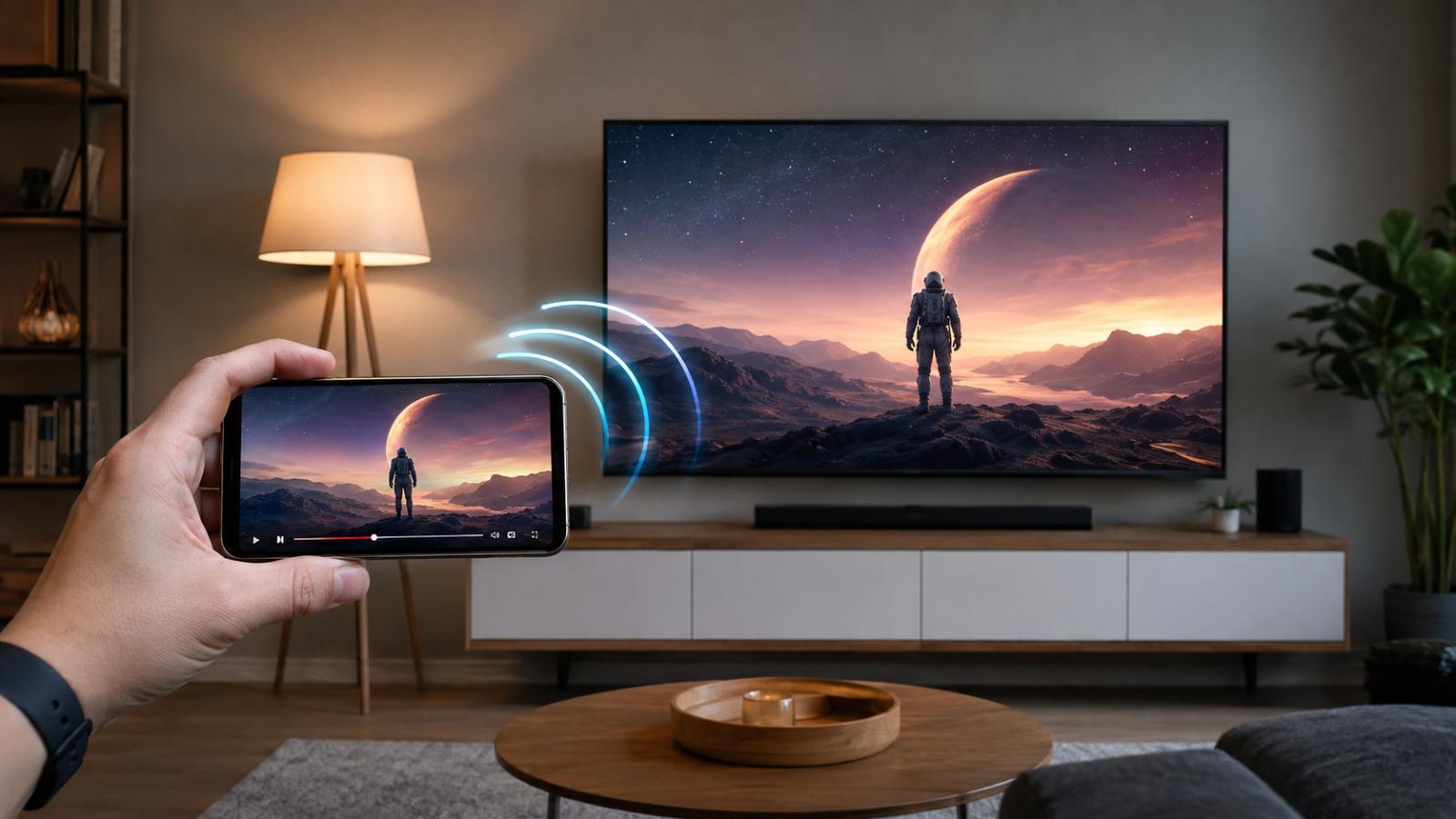
The easiest way to learn how to cast from Android to TV is to use Google Cast from a compatible streaming app. Connect the Android phone or tablet and television to the same Wi-Fi network, tap the Cast icon, and select the TV. That is also the simplest answer to how to cast to TV from Android phone, but compatibility varies by television, streaming device, Android manufacturer, and app. When direct casting is unavailable, screen mirroring or a compatible wired connection may work instead.
How to Cast From Android to TV
Connect your Android device and compatible television to the same Wi-Fi network. Open a Cast-enabled app, tap the Cast icon, select the television, and begin playback. The television receives the stream while the phone controls it. Exact steps can vary by app, TV model, and connected streaming device.
Follow these basic steps:
- Connect the Android phone and TV to the same Wi-Fi network.
- Open a Cast-enabled streaming app.
- Select the video you want to watch.
- Tap the Cast icon.
- Choose the television or streaming device.
- Start playback and control it from the phone.
If the Cast icon does not appear, confirm that the app and receiving device support the same casting method.
What Do You Need Before Casting Android to a TV?
Before starting, check that you have:
- An Android phone or tablet
- A compatible Smart TV or streaming device
- A stable local Wi-Fi network
- A Cast-compatible streaming app, when using app-level casting
- Current software on the phone, app, and television
Most wireless casting methods work best when the phone and receiver use the same Wi-Fi network. According to Google’s official casting instructions, the Android device should be connected to the same network as the Chromecast, Google TV Streamer, or Cast-compatible television.
A wired TV connection does not use Wi-Fi, but the Android device must support video output through its USB-C port. Many phones use USB-C only for charging and data, so the connector shape alone does not confirm video support.
How to Chromecast From Android
If you are searching for how to Chromecast from Android, the process normally starts inside a supported app rather than in the phone’s general display settings.
- Turn on the television and its Chromecast, Google TV, Android TV, or Google Cast receiver.
- Connect the Android device and receiver to the same Wi-Fi network.
- Open a Cast-compatible app.
- Tap the Cast icon, which usually resembles a screen with wireless waves.
- Select the receiving device.
- Choose content and begin playback.
The television handles the video stream while the phone acts mainly as a remote. You can usually pause, resume, seek, or select something else from the app without mirroring every action on the phone.
To disconnect, open the Cast controls again and choose Stop casting or Disconnect. Button names may differ slightly between apps.
Google Home can also mirror an Android screen to supported Google Cast receivers, but app-level casting is usually preferable for streaming video. It lets the TV receive the stream directly and may provide better playback than duplicating the complete phone screen.
How to Cast Your Android Phone to a Smart TV
The answer to how to cast Android phone to TV depends on the standards supported by both devices. A Smart TV may support Google Cast, manufacturer-specific screen sharing, app-level connections, or several methods at once.
Start by opening the streaming app on your phone and looking for the Cast icon. If the television appears, select it. Some apps require their corresponding TV application to be installed or activated before playback can begin.
If the TV does not appear, check its settings for options such as:
- Google Cast
- Screen Share
- Screen Mirroring
- Wireless Display
- Smart View
- Device Connection
Feature names and menu locations vary by brand, model, and software version.
Casting and mirroring are not identical. Casting sends selected content to the receiver, while screen mirroring duplicates the Android display. Try app-level casting first for movies and shows, then use mirroring when you need to display photos, presentations, websites, or an app without native Cast support.
How to Cast From Android to Samsung TV
The best method for how to cast to Samsung TV from Android depends on the phone, television model, and application.
First, open the video app and check for a Cast icon. If the app and TV support a compatible connection, select the Samsung television from the device list.
Galaxy phone and tablet users may also have Samsung Smart View:
- Connect the Galaxy device and Samsung TV to the same Wi-Fi network.
- Swipe down to open the Quick Settings panel.
- Tap Smart View.
- Select the television.
- Approve the connection request or enter the displayed PIN if requested.
Samsung’s official screen-mirroring guide confirms that Smart View and SmartThings can connect supported devices, but availability and menu names can vary. Smart View is primarily a mirroring method, so everything visible on the phone may also appear on the TV.
Do not assume every Android phone includes Smart View or that every Samsung television supports the same connection options. Check the specifications for the exact models if the TV is not detected.
How to Cast From Android to LG TV
For how to cast to LG TV from Android, begin with the Cast button inside the streaming app. This works when the particular LG television and application support Google Cast or another compatible app-level connection.
Some LG televisions instead provide an option called Screen Share. On a compatible Android phone:
- Place the phone and TV on the same network.
- Open the phone’s screen-sharing or wireless-display control.
- Select the LG television.
- Approve the connection on the TV.
LG confirms that supported webOS televisions can use their Screen Share function with compatible Android devices. However, casting features differ across LG model years and software versions. Newer models may support options unavailable on older televisions.
If neither the Cast icon nor the television’s Screen Share feature works, verify the exact LG model and review its current connection specifications.
How to Cast From Android to Roku TV
There are two main answers to how to cast to Roku TV from Android: cast from a supported app or mirror the complete Android screen.
For app-level casting:
- Connect the Android phone and Roku device to the same Wi-Fi network.
- Install the compatible app on both devices if required.
- Open the app on Android.
- Tap its Cast icon.
- Select the Roku device.
Roku explains that the corresponding channel launches on the television and begins playing the selected content. The phone can then control playback without continuously displaying the same screen.
For how to cast to Roku TV from Android phone through screen mirroring, open the phone’s wireless-display feature—called Smart View on many Galaxy devices—and select the Roku receiver. Approve the request on the television.
Roku’s official Android screen-mirroring instructions note that the exact phone steps vary. Some Android devices, including certain Google-branded phones, may not support Roku’s Miracast-based screen mirroring even though they can use compatible app-level casting.
Can You Cast From Android to Fire TV?
Yes, but how to cast to Fire TV from Android depends on the Fire TV model, Android manufacturer, and application.
Some supported apps can connect directly when the phone and Fire TV use the same Wi-Fi network. Look for the Cast icon inside the app and select the Fire TV if it appears.
Some Fire TV models also provide Display Mirroring under Settings > Display & Sounds. The Android phone must support a compatible wireless-display standard. Google Pixel phones, for example, focus on Google Cast and may not connect through the Miracast method used by certain Fire TV devices.
Because support differs, check the exact Fire TV model rather than assuming that every Android phone can mirror to it.
Casting vs. Screen Mirroring: What Is the Difference?
Casting sends a selected video, song, or other supported item to the television. The receiving device handles playback while the phone works mainly as a controller. You can often use another app or turn off the phone screen without interrupting the video.
Screen mirroring displays the complete Android screen on the television. Menus, notifications, orientation changes, and other phone activity may appear on the TV. The phone normally needs to stay active throughout the session.
Use casting for supported streaming apps because it is usually more efficient. Use mirroring when you need to show the entire screen or content that does not offer a Cast button.
Protected streaming services may restrict screen mirroring or display a black screen. When that happens, use the service’s official TV app or supported Cast function.
Why Is the Cast Button Missing on Android?
The Cast button may be missing for several reasons:
- The phone and television are using different Wi-Fi networks.
- The application does not support casting.
- The television or receiver does not support the app’s casting standard.
- The app has not discovered nearby devices.
- A guest or isolated Wi-Fi network is blocking local device communication.
- The app, Android device, or television needs an update.
- A VPN is interfering with local-network discovery.
- The phone or television needs to be restarted.
Open another known Cast-compatible app as a quick test. If its Cast icon appears, the original app may not support the receiving device.
Also check whether the button appears only after selecting or starting a video. Some applications do not display it on every screen.
Android Won’t Cast to TV: How to Fix It
Work through these steps in order:
- Confirm that Wi-Fi is enabled on the phone.
- Check that the Android device and TV use the same network name.
- Close and reopen the streaming app.
- Turn off any active VPN temporarily.
- Restart the Android phone or tablet.
- Restart the television or connected streaming device.
- Restart the router if device discovery still fails.
- Update the streaming app.
- Install available Android system updates.
- Update the TV or receiver software.
- Test a different Cast-compatible app.
- Remove and reconnect the receiver in Google Home if appropriate.
If the television appears but playback fails, test a different video. The original content may have regional, account, format, or digital-rights restrictions.
If mirroring works but app-level casting does not, verify that the same application or compatible receiver is available on the TV. If casting works but mirroring does not, the Android phone may not support the television’s wireless-display standard.
Can You Cast Without Wi-Fi?
Standard Google Cast normally requires the Android device and receiver to communicate over a local network. Mobile data alone does not automatically create a normal Cast connection.
Possible alternatives include:
- A USB-C-to-HDMI adapter on phones that support wired video output
- A manufacturer-supported wireless display mode
- A properly configured travel router or local network
- An officially supported guest connection on compatible equipment
A mobile hotspot may work in limited setups, but using the same phone as both the hotspot and casting controller is not reliable across all devices.
Before buying a USB-C-to-HDMI adapter, check whether the exact phone or tablet supports DisplayPort Alternate Mode or another compatible video-output feature. Not every USB-C Android device does.
How to Cast Streaming Apps From Android to TV
Most compatible streaming apps follow the same process:
- Open the official application.
- Sign in if required.
- Choose a movie, episode, or video.
- Tap the Cast icon.
- Select the television.
- Control playback from the Android device.
Once your phone is connected, you can use the same setup with other supported services. If you need something to test, check our Jurassic World Rebirth streaming guide for the movie’s current subscription, rental, and purchase availability.
Service compatibility can vary by country, subscription plan, account, title, and receiving device. A Cast icon confirms that the application offers a connection option, but it does not guarantee that every TV or individual video will be supported.
Frequently Asked Questions
How do I cast from Android to TV?
Connect both devices to the same Wi-Fi network, open a Cast-enabled app, tap the Cast icon, and choose the television or streaming receiver.
How do I cast my Android phone to my TV without Chromecast?
Use the TV’s supported app-level casting, Smart View, Screen Share, Miracast, or a compatible USB-C-to-HDMI connection. Support depends on both devices.
Why can’t my Android phone find my TV?
The devices may be on different networks, the app or TV may not support the same casting standard, local discovery may be blocked, or one device may need an update or restart.
Do Android and TV need to be on the same Wi-Fi to cast?
Usually, yes. Standard app-level casting and device discovery generally require both devices to be on the same local network.
How do I Chromecast from Android?
Open a Google Cast-enabled app, tap the Cast icon, select the Chromecast or compatible TV, and start playing the content.
Can I cast Android to Samsung TV?
Yes, when the phone, television, and application support a compatible method. Galaxy devices may also mirror through Smart View or SmartThings.
Can I cast Android to Roku?
Yes. Supported apps can cast to Roku, while compatible Android devices can use screen mirroring. The two methods work differently.
Can Android cast to Fire TV?
Some apps and Fire TV models support casting or screen mirroring from compatible Android devices. Support depends on the app, Fire TV model, and phone manufacturer.