
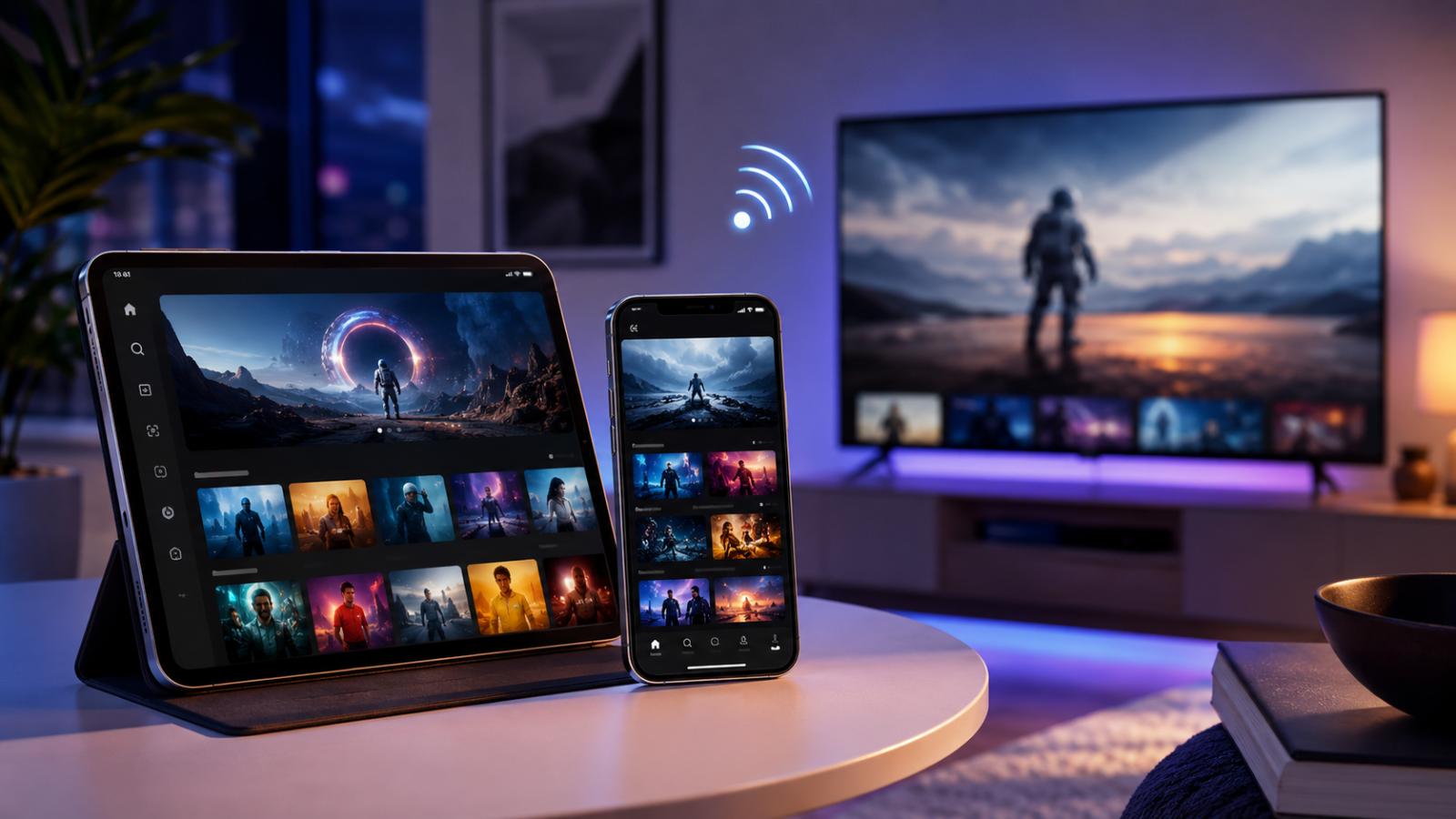
Choosing the best streaming apps for iPhone is about more than finding the service with the biggest catalog. A good mobile streaming setup should also give you reliable playback, useful download options, sensible data controls, and an easy way to move a movie from your phone to a larger screen.
iPhone and iPad users can choose from major subscription services, free ad-supported apps, live TV platforms, anime services, and sports apps. Apple’s current U.S. Entertainment chart includes major streaming names such as Netflix, Disney+, Prime Video, HBO Max, Tubi, Peacock, Hulu, and Paramount+, although availability and features vary by country.
This guide covers the best apps to consider, how to stream movies on an iPhone or iPad, how AirPlay works, and what to do when streaming starts buffering, AirPlay disconnects, video turns black, or sound disappears.
Best Streaming Apps for iPhone
The best streaming apps for iPhone depend on what you actually watch. Some are better for movies, others focus on television, anime, free channels, or live programming.
| Streaming App | Best For | Cost Model | Good iPhone Use Case |
|---|---|---|---|
| Netflix | Movies and original series | Subscription | General everyday streaming |
| Prime Video | Movies, series, rentals and purchases | Subscription + paid titles | Flexible movie access |
| Disney+ | Disney, Pixar, Marvel and major franchises | Subscription | Family and franchise viewing |
| Apple TV | Apple Originals and purchased media | Subscription + purchases | Apple ecosystem users |
| HBO Max | Premium movies and series | Subscription | Prestige TV and films |
| Hulu | Current television and entertainment | Subscription | TV-focused viewers |
| Tubi | Free movies and television | Free with ads | Free on-demand viewing |
| Pluto TV | Free live-style channels | Free with ads | Channel surfing |
| Crunchyroll | Anime | Plan varies | Anime fans |
Catalogs, plans, live channels, downloads, picture quality, and geographic availability change over time. Check the service in your local App Store before subscribing.
1. Netflix — Best All-Around Streaming App
Netflix remains one of the simplest choices for viewers who want movies, series, documentaries, and original programming in one application.
Its iOS app works well for watching at home or away from a television, and supported titles can be downloaded for offline viewing.
Netflix also supports different video capabilities depending on the Apple device. Its current support documentation states that compatible iPhones and iPads can play Full HD and HDR, with exact support depending on the model.
For most people comparing the best movie streaming apps for iPhone, Netflix is a practical starting point rather than a universal winner. The catalog is the deciding factor.
2. Prime Video — Best for Subscriptions Plus Rentals
Prime Video is useful when you want both subscription streaming and access to individual rentals or purchases where offered.
That flexibility can be valuable when a specific movie is not included with a subscription.
The app also supports downloadable content for supported titles, which is useful before a flight, commute, or trip where mobile coverage may be unreliable.
3. Disney+ — Best for Major Franchises
Disney+ is a natural choice for viewers interested in Disney, Pixar, Marvel, Star Wars, National Geographic, and other programming available through the service in their region.
The interface is particularly well suited to households where several people regularly watch content from the same group of brands.
Downloads and premium picture formats depend on your device, plan, title, and market.
4. Apple TV — Best for the Apple Ecosystem
The Apple TV app is already closely integrated into Apple’s ecosystem and provides access to Apple TV content, supported channels, purchases, rentals, and other viewing options depending on your location.
It is especially convenient if your movies, subscriptions, Apple TV hardware, and iPhone all use the same Apple Account.
It also works naturally with AirPlay when you want to move compatible content to an Apple TV or supported smart television.
5. HBO Max — Best for Premium Series and Films
HBO Max is a strong option for viewers who prioritize high-profile television series, Warner Bros. films, documentaries, and premium entertainment.
Apple’s current U.S. Entertainment chart lists the HBO Max iPhone app among popular entertainment downloads.
As with other services, the available library and plan features can vary significantly by region.
6. Hulu — Strong Choice for Television
Hulu is particularly relevant to U.S. viewers who want a television-focused streaming service.
Its standard streaming plans center on on-demand programming, while eligible packages can add live television.
For people searching for the best TV streaming apps for iPhone, Hulu is worth comparing with the other live and on-demand services available in their market.
7. Tubi — Best Free Movie Option
Tubi is one of the most useful choices among the best free streaming apps for iPhone.
Instead of requiring a traditional monthly subscription for its main catalog, Tubi uses advertising to support free viewing.
That makes it useful as a secondary app even if you already pay for one or two premium services.
8. Pluto TV — Best for Free Live-Style Channels
Pluto TV combines free on-demand content with scheduled channels.
The experience is closer to traditional channel surfing than browsing a normal subscription catalog, making it useful when you simply want to start watching something without choosing a specific title first.
It is also an option to consider when searching for the best live TV apps for iPhone without immediately adding another paid subscription.
9. Crunchyroll — Best for Anime
Crunchyroll is the specialist option in this list.
If most of your mobile viewing is anime, a focused service can be more useful than searching through the smaller anime sections of several general entertainment apps.
Available plans and individual titles vary by location.
Best Streaming Apps for iPad
The best streaming apps for iPad are mostly the same major services available on iPhone, but an iPad changes the viewing experience.
The larger display makes an iPad more comfortable for long movies, subtitles, sports, and television episodes. It can also work as a useful travel screen when a hotel television does not support your preferred streaming account.
Good iPad choices include:
- Netflix for general movies and series
- Prime Video for subscriptions, rentals, and purchases
- Disney+ for franchise entertainment
- Apple TV for Apple’s video ecosystem
- HBO Max for premium programming
- Tubi for free movies
- Pluto TV for free scheduled channels
- Crunchyroll for anime
When choosing an app, check whether it supports offline downloads if you regularly travel.
Downloads can be more reliable than trying to maintain a live stream on airport, train, hotel, or public Wi-Fi.
Best Streaming Apps for iOS
When comparing the best streaming apps for iOS, avoid assuming that every service needs to be installed.
A better strategy is to organize your apps by purpose.
For example:
- One main subscription for general movies and shows
- One specialist service for anime, sports, or premium series
- One free ad-supported app as a backup
- Apple TV for content tied to your Apple ecosystem
Keeping fewer streaming apps for iOS can also make subscription costs easier to track.
Before installing any service, use the official App Store listing and check whether it is available in your country. Apple’s current Entertainment chart confirms that numerous major streaming services continue to distribute official iPhone apps. (Apple App Store Entertainment chart)
Best Free Streaming Apps for iPhone
Free does not have to mean unofficial.
Tubi and Pluto TV are two legitimate ad-supported options that can complement premium subscriptions.
Depending on your country, other broadcaster-supported or ad-supported applications may also be available.
When evaluating free apps:
- Download them from the official App Store.
- Check the developer name.
- Read the privacy information.
- Avoid apps asking you to install unknown configuration profiles.
- Avoid services promising unauthorized access to paid channels or newly released movies.
A legitimate free app usually makes its business model clear through advertising, public broadcasting, or a free tier.
Best Live TV Apps for iPhone
The best live TV apps for iPhone depend heavily on your location.
In the United States, services such as Hulu with Live TV, YouTube TV, Fubo, Peacock, and individual network apps may provide live programming depending on the plan and channel.
Outside the U.S., local broadcasters and regional streaming platforms may be more useful.
Before subscribing, check:
- Whether your required channels are included
- Whether local stations are available
- Sports blackout rules
- Mobile viewing restrictions
- Simultaneous-stream limits
- Travel restrictions
- DVR features
Do not choose a live TV service based only on the number of advertised channels. Make sure it carries the few channels you actually watch.
Best Sports Streaming Apps for iPhone
There is no universal winner for the best sports streaming apps iPhone users should install because sports rights are regional.
A service that carries a competition in one country may not own the rights in another.
Depending on your location and sport, useful options may include:
- ESPN services
- DAZN
- Fubo
- Peacock
- Paramount+
- League-specific apps
- Official broadcaster apps
For sports, check the exact competition rather than only the app name.
A football league, tennis event, basketball competition, or combat-sports event may move between broadcasters from one season to another.
How to Stream Movies on iPhone
If you are learning how to stream movies on iPhone, use the official application whenever possible.
Method 1: Use a Streaming App
- Open the App Store.
- Search for the streaming provider.
- Confirm the official developer.
- Install the app.
- Sign in.
- Select your profile if required.
- Find a movie.
- Tap Play.
If the title supports downloads, you may also see a download button.
Downloaded movies are useful when you expect unstable Wi-Fi or want to avoid using cellular data.
How to Watch Movies on iPhone Safely
For anyone searching how to watch movies on iPhone, stick with official streaming apps, legitimate rentals, purchases, and authorized free services.
Avoid websites that ask you to:
- Install unknown profiles
- Disable device security
- Download unofficial certificates
- Enter an Apple Account password outside Apple’s normal sign-in interface
- Install a modified streaming application
If you are researching one specific release rather than choosing an app, our Jurassic World Rebirth streaming guide is an example of checking a title’s official streaming options separately from this iOS setup guide.
How to Stream Movies on iPad
The process for how to stream movies on iPad is nearly identical.
- Install the official app from the App Store.
- Sign in.
- Connect to stable Wi-Fi.
- Choose a movie or episode.
- Start playback.
- Rotate the iPad for landscape viewing.
- Use headphones or external audio if preferred.
For travel, download supported titles before leaving a reliable connection.
Do not wait until you are on airplane or hotel Wi-Fi to build an offline library.
How to AirPlay Movies to a TV
AirPlay streaming allows compatible video, audio, photos, or a device screen to be sent from an iPhone or iPad to an Apple TV, AirPlay-enabled television, or other compatible receiver.
Apple’s official guide explains that AirPlay can stream video or mirror an iPhone or iPad screen to compatible devices. (Apple’s AirPlay guide)
How to AirPlay Movies to TV
For how to AirPlay movies to TV, start inside the video application when it provides a native AirPlay button.
- Turn on the television or Apple TV.
- Connect the devices to the appropriate Wi-Fi network.
- Open the streaming app.
- Start or select the video.
- Tap the AirPlay icon when available.
- Select the television or Apple TV.
- Enter an AirPlay code if the television displays one.
- Control playback from the iPhone or iPad.
In-app AirPlay is normally preferable to mirroring the entire phone for a movie because the connection is designed specifically for media playback.
Not every streaming service or individual title supports every AirPlay configuration.
AirPlay vs iPhone Screen Mirroring
AirPlay video streaming and screen mirroring are related but not identical.
With normal AirPlay, you select a supported movie, video, photo, or audio item and send it to the receiver.
With iPhone screen mirroring streaming, the television attempts to reproduce the complete phone display.
To mirror your screen:
- Open Control Center.
- Tap Screen Mirroring.
- Choose the compatible receiver.
- Enter the displayed code if requested.
Screen mirroring is useful for photos, presentations, websites, and compatible apps.
For commercial streaming video, use the app’s built-in AirPlay button when available. Some protected video services can restrict complete-screen mirroring.
AirPlay Not Working: What to Check
An AirPlay not working problem is often caused by device discovery rather than the movie itself.
Work through these steps in order.
1. Check Both Devices
Make sure the iPhone or iPad and television, Apple TV, or receiver are turned on.
2. Check the Network
For normal home AirPlay use, confirm that both devices are connected correctly to the local network required by your setup.
If one device is on guest Wi-Fi while the other is on the main network, they may not be able to discover each other.
3. Restart the Streaming App
Close the video app and reopen it.
Then check whether the AirPlay button appears again.
4. Restart the Devices
Restart the iPhone or iPad and the television or streaming receiver.
This can clear temporary discovery problems.
5. Update Software
Install current iOS or iPadOS updates along with updates for the television, Apple TV, and streaming application.
6. Temporarily Disable a VPN
A VPN can sometimes interfere with local-device discovery.
Disconnect it briefly and test AirPlay again.
7. Test Another App
Open another app that supports AirPlay.
If the TV appears there, the original problem may be specific to one streaming service or video.
AirPlay Keeps Disconnecting
When AirPlay keeps disconnecting, first look at the network.
AirPlay can become unstable when:
- Wi-Fi signal strength is poor
- The router is overloaded
- One device switches networks
- The phone moves between Wi-Fi and cellular connectivity
- A VPN interferes with local communication
- The receiver temporarily loses its network connection
Move closer to the router and restart both devices.
If the problem happens only with one application, test another AirPlay-compatible app before changing router settings.
A wired network connection for the television or Apple TV can also help isolate whether the receiving device’s Wi-Fi connection is contributing to the problem.
How to Fix Buffering on iPhone
iPhone streaming buffering usually means the app cannot receive video data consistently enough for the selected quality.
When streaming keeps buffering on iPhone, start with the connection.
1. Test Wi-Fi and Cellular Separately
If Wi-Fi buffers, briefly test the same service over cellular if your plan allows it.
If cellular buffers but Wi-Fi works normally, the problem may be mobile coverage rather than the streaming application.
2. Move Closer to the Router
Weak Wi-Fi can produce inconsistent streaming even when an internet speed test occasionally shows a high result.
Test closer to the router.
3. Stop Other Heavy Downloads
Pause large downloads, cloud backups, software updates, and other high-bandwidth activity on the network.
4. Close and Reopen the App
Completely close the streaming application and start it again.
Then resume the movie.
5. Restart the iPhone
A restart is worth trying before reinstalling anything.
6. Lower Streaming Quality
If the service lets you select video quality, temporarily reduce it.
If lower quality plays normally, the available connection may not be stable enough for the previous setting.
7. Update the App
Open the App Store and check for an update.
8. Test Another Streaming Service
This is one of the fastest methods for how to fix buffering on iPhone.
If Netflix, for example, buffers but two unrelated video services work normally, the problem is less likely to be the entire phone or home connection.
Streaming App Not Working on iPhone
When you encounter a streaming app not working iPhone problem, avoid immediately resetting network settings or deleting everything.
Use a controlled order.
- Close and reopen the app.
- Check the internet connection.
- Restart the iPhone.
- Check for an app update.
- Install available iOS updates.
- Sign out and sign back in if appropriate.
- Check whether the streaming provider is experiencing an outage.
- Remove and reinstall the app if necessary.
If several unrelated streaming apps fail at the same time, investigate the network or iPhone before blaming one service.
Video Streaming Black Screen on iPhone
A video streaming black screen iPhone problem can occur while audio or player controls still appear.
Try:
- Close and restart the streaming app.
- Restart the phone.
- Update iOS.
- Update the streaming application.
- Stop Screen Mirroring and test playback directly on the phone.
- Disconnect external adapters temporarily.
- Try a different movie or episode.
- Reinstall the application if the problem remains.
If video works on the iPhone but turns black only when mirroring to a television, the service may be restricting that display method.
Try the application’s native AirPlay option or the service’s official television app instead.
Streaming No Sound on iPhone
A streaming no sound iPhone problem is often an audio-output issue rather than a video problem.
Check these items.
Check the Volume
Raise the volume while the video is actively playing.
Check Bluetooth
Your iPhone may still be sending audio to:
- AirPods
- Bluetooth headphones
- A car
- A speaker
- Another nearby audio device
Open Control Center and confirm the active audio output.
Check AirPlay
If you recently used AirPlay, sound may still be routed to another receiver.
Switch the output back to the iPhone.
Restart the Video
Pause the stream, close it, and reopen it.
Test Another App
If every application has no sound, investigate iPhone audio settings.
If only one streaming service is silent, troubleshoot that app first.
Streaming Quality on iPhone
Getting the best streaming quality iPhone can produce depends on several things working together:
- The iPhone model
- The streaming application’s capabilities
- Subscription plan
- The specific title
- Internet stability
- App quality settings
- Wi-Fi or cellular conditions
Do not assume every title is available in the service’s highest format.
A service may offer HDR for one movie and standard dynamic range for another.
HDR Streaming on iPhone
HDR streaming iPhone support depends on both the device and streaming provider.
Netflix provides a useful example. Its current iPhone and iPad documentation says iPhone 8 and later models support Netflix HDR playback, while iPhone X and later models support Netflix playback in Full HD. Compatible iPad models also have service-specific Full HD and HDR support. (Netflix iPhone and iPad support)
Those requirements apply specifically to Netflix and should not be assumed for every service.
For any streaming app, check:
- Whether the iPhone display supports the format
- Whether the title is available in HDR
- Whether your plan includes the required quality
- Whether the application supports HDR on that device
- Whether the connection is stable enough
HDR does not automatically mean a sharper image. It primarily expands supported brightness, contrast, and color information when the entire playback chain supports it.
Streaming Over Cellular on iPhone
Streaming over cellular iPhone connections can be useful when Wi-Fi is unavailable, but video can consume a significant amount of mobile data.
Before a long session:
- Check your mobile-data allowance.
- Look at the streaming app’s data settings.
- Choose a lower quality if conserving data matters.
- Download movies over Wi-Fi when the app allows it.
- Monitor your carrier usage.
- Avoid assuming that an unlimited plan always includes unrestricted high-quality video.
Some carriers manage video traffic differently by plan.
Your streaming application may also have separate Wi-Fi and cellular quality settings.
If picture quality drops when leaving Wi-Fi, the phone may be responding to cellular conditions, the app’s data-saving setting, or the provider’s network.
Downloads vs Streaming: Which Is Better on iPhone?
Streaming is convenient when you have a stable connection.
Downloads are better when:
- Flying
- Commuting underground
- Traveling internationally
- Using unreliable hotel Wi-Fi
- Conserving cellular data
- Expecting weak network coverage
When supported, download the movie before leaving home.
Remember that offline titles can have expiration rules and may require the application to reconnect periodically.
How to Improve iPhone Streaming Before a Trip
A few minutes of preparation can prevent most travel-streaming problems.
Before leaving:
- Update iOS.
- Update your streaming apps.
- Sign in to each service.
- Download important movies or episodes.
- Verify that downloaded titles actually play.
- Charge the phone or iPad.
- Pack compatible headphones.
- Check available storage.
- Confirm your cellular plan if traveling internationally.
Do not rely on airport or hotel Wi-Fi for an important download at the last minute.
Frequently Asked Questions
What are the best streaming apps for iPhone?
Netflix, Prime Video, Disney+, Apple TV, HBO Max, Hulu, Tubi, Pluto TV, and Crunchyroll are strong options depending on the content you want. Availability varies by country and plan.
What are the best streaming apps for iPad?
Most major iPhone services also have iPad versions. Netflix, Prime Video, Disney+, Apple TV, HBO Max, Tubi, Pluto TV, and Crunchyroll are useful places to start.
What are the best free streaming apps for iPhone?
Tubi and Pluto TV are two notable ad-supported options. Free-service availability varies by region.
Can I stream movies from my iPhone to a TV?
Yes. If the television or connected receiver supports AirPlay and the application allows it, you can send compatible video from an iPhone or iPad to the larger screen.
Is AirPlay the same as Screen Mirroring?
No. AirPlay can send supported media to another device, while Screen Mirroring reproduces the phone or tablet display. For movies, native AirPlay inside the streaming app is usually the better method when supported.
Why is AirPlay not working?
Check that the devices are powered on, properly connected to the local network, updated, and able to see each other. Restart both devices and test another AirPlay-compatible app.
Why does AirPlay keep disconnecting?
Weak Wi-Fi, network switching, receiver connectivity problems, router congestion, or VPN interference can cause repeated disconnections.
Why does streaming keep buffering on my iPhone?
Common causes include unstable Wi-Fi, weak cellular reception, network congestion, background downloads, or video quality that is too demanding for the current connection.
Why does my streaming app show a black screen when I mirror it?
Some streaming services restrict particular screen-mirroring methods for protected video. Try the application’s built-in AirPlay feature or its official TV app.
Can I watch HDR streaming on iPhone?
Yes on supported iPhone models and compatible streaming services. HDR availability also depends on the title and subscription plan.
Does streaming use a lot of cellular data?
High-quality video can consume substantial data. Use Wi-Fi or offline downloads when possible if your cellular plan has a limited allowance.
Final Thoughts
The best streaming apps for iPhone are the ones that match the way you actually watch.
Netflix, Prime Video, Disney+, Apple TV, HBO Max, and Hulu cover different premium entertainment needs, while Tubi and Pluto TV provide useful free alternatives. Crunchyroll is a more focused choice for anime, and sports or live-TV viewers should select apps based on the rights available in their country.
For everyday mobile streaming, keep your apps updated, use a stable connection, download important content before traveling, and manage cellular quality when data usage matters.
When you want a bigger screen, AirPlay is one of the most useful features available to iPhone and iPad users. Use native AirPlay when the streaming service supports it, reserve Screen Mirroring for compatible content, and troubleshoot the network first when the television repeatedly disconnects.